
Labels print where they
should, every time.Labels print where they should, every time.
A small Windows agent connects your workstation printers to ShipNest, follows every job and pauses label creation if it goes offline.A small Windows agent connects your printers to ShipNest, follows every job and pauses label creation if it goes offline.

How it works
Three steps, no training.
Install the agent
On Windows 10 or 11, or Windows Server 2019 or 2022.
Set your defaults
One default PDF printer and one default ZPL printer.
Follow every job
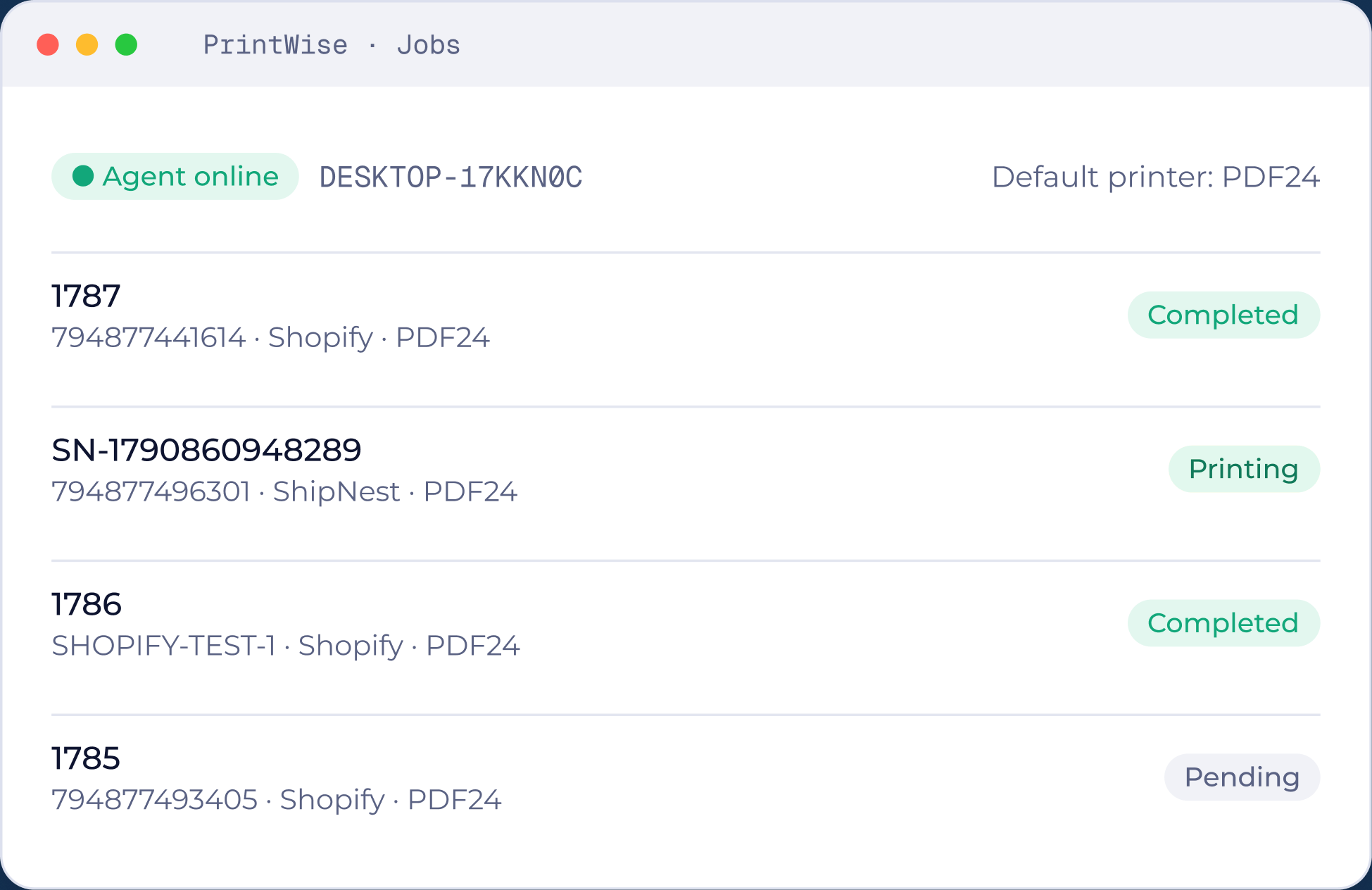
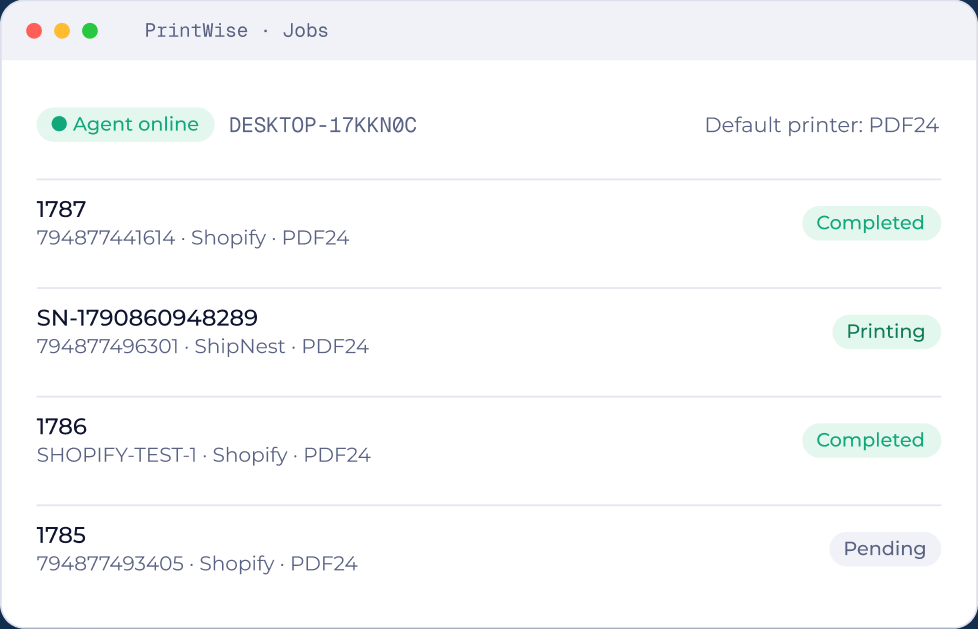
See pending, printing, completed, failed and cancelled jobs in one list.
Install the agent
Windows 10 or 11, or Windows Server 2019 or 2022.
Set your defaults
One default PDF printer and one default ZPL printer.
Follow every job
Pending, printing, completed, failed and cancelled.
Why teams use it
Small change, big difference on the floor.

PDF and ZPL
PDF and ZPL
One default PDF printer and one default ZPL printer.One default PDF and one default ZPL printer.

Offline protection
Offline protection
If the agent goes offline, label creation pauses until it is back.Label creation pauses until the agent is back.

Bulk PDF download
Bulk PDF download
Select jobs across pages and download them as a single PDF.

A clear job history
A clear job history
Every job shows its printer, format and status.Printer, format and status for every job.
Questions
PrintWise questions.
Windows 10 and 11, and Windows Server 2019 and 2022.


See ShipNest in 20 minutes.
A live walkthrough of ShipNest, from new order to scanned box, with time for your questions.