Setting up PrintWise with one PDF and one ZPL printer
Install the Windows agent, pick your defaults and follow every print job from ShipNest.

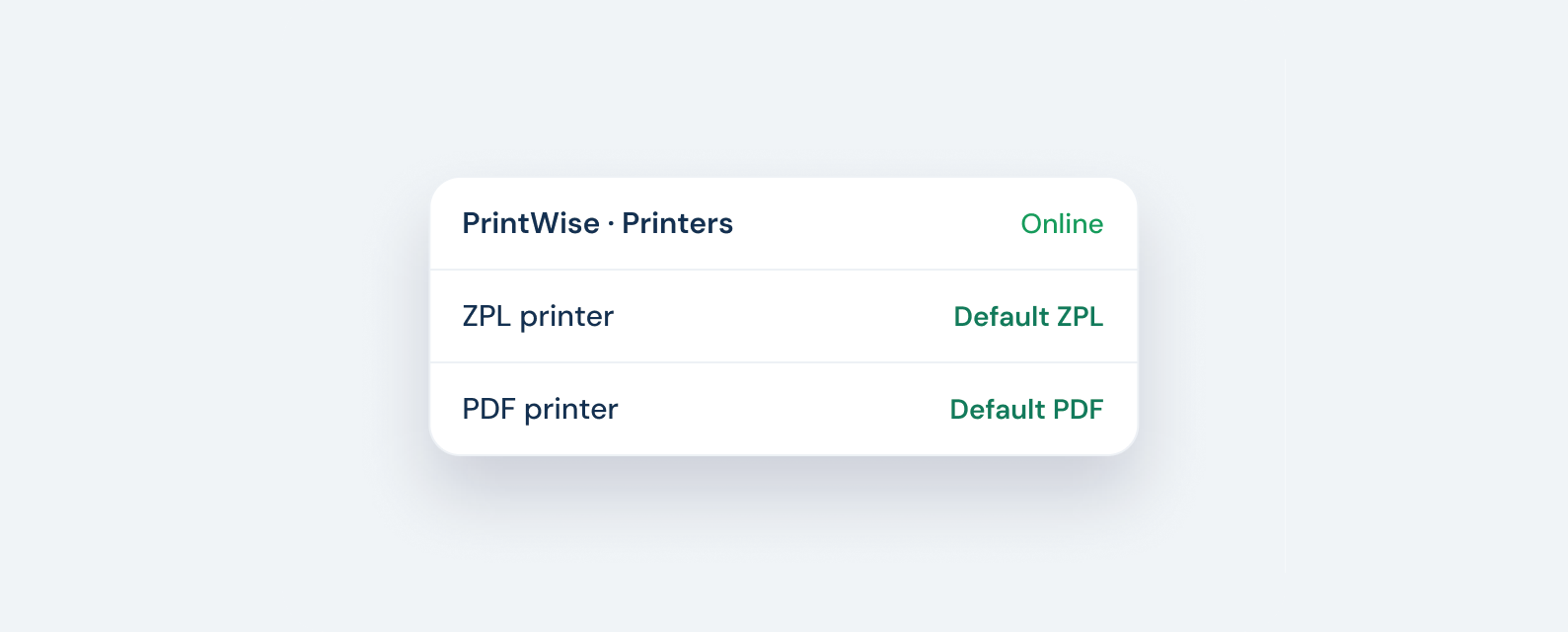
Most warehouses need two kinds of printer: a thermal printer for 4x6 shipping labels and a regular printer for packing slips and invoices. PrintWise sends each document to the right one without anyone opening a PDF.
Install the Windows agent
PrintWise runs as a small agent on a Windows computer at the packing station. Download it from Settings, sign in with your ShipNest account and it lists every printer that computer can see, including USB and network printers.
Pick your defaults
Choose one printer as the default for ZPL labels and one as the default for PDF documents. Labels from UPS, FedEx and USPS are sent as ZPL straight to the thermal printer, so they print sharp and at the right size every time. Packing slips go to the PDF printer.
- Set a ZPL default for shipping labels.
- Set a PDF default for packing slips, invoices and return labels.
- Add a second station later by installing the agent on another computer.
Follow every print job
Every job shows up in ShipNest with its status: queued, printing, done or failed. If a printer runs out of labels or goes offline, the job waits and you can reprint it from the order once the printer is back, instead of buying a second label.